Monday, December 5, 2011

How to Open Docx Files Without Microsoft Word 2007


Docx format was introduced by Microsoft in 2007 with a quest for people to upgrade their office software and other Microsoft services. This version of MS Office 2007 is not compatible with the older versions like Office 2003 or Office 2000. I get annoyed when I receive the .docx files from my friends and I don’t have Office 2007 installed on my machine and I don’t have any plans to upgrade it either.


So Geeky Valley will tell you five known ways to open a .docx file even if you don’t have microsoft office 2007 installed on your computer.

1. Microsoft Compatibility Pack

This pack is introduced by Microsoft so that its new products are backward compatible with the older software. This pack will allow you to open, edit and save all your office documents in the latest versions of the Microsoft. This pack is available from the website of the company.

2. OpenOffice

This is an open source alternative to the Microsoft Office. This software is free and easy to use. You can open them directly or using its Open XML Translator tool.

3. Go Online

Internet is flooded with many websites that offer you free services to convert the .docx format into .doc format online. There are several popular online converters available such as Zamzar and docx2doc. You can opt for the offline conversion also by downloading the Docx-convertor dashboard from here.

4. Google Docs


And here comes the Google to rescue us from this situation. The Google docs enable you to view your .docx file online but keep in mind that the formatting can be affected.

5. Using Firefox Extension
OpenXML Viewer Firefox Plugin is developed for Microsoft Office 2007 or higher version that enables you to view the .docx files in the browser itself. This plugin works by converting the .docx into HTML on the fly retaining all the formatting and other layouts. You can download this plugin from here.

How to Test the Working of your Antivirus

Most of us always think about the best antivirus for our pc. But sometimes the antivirus might not be working well or correctly. Sometimes you wan to check the working of your antivirus but the question is how to check whether the antivirus is working correctly or not. Today I am going to tell you about a small test which can be used by users to test the working of your antivrus software. The test is called as EICAR test which can be used to test any antivirus and was developed by European Institute of Computer Antivirus Research (EICAR). So now you don’t need a computer virus to test the working of your antivirus you can simple do so by following the steps given below.


1. First of all open a notepad and copy the following code into the notepad and save it as anything.txt.

X5O!P%@AP[4\PZX54(P^)7CC)7}$EICAR-STANDARD-ANTIVIRUS-TEST-FILE!$H+H*

2. Rename the file from New Text Document.TXT to myfile.com

3. Now run the antivirus scan on this myfile.com file.

If the antivirus is working correctly then it should give a warning or alert and delete the file immediately. If no such warning or alert message is displayed then you either need to re-install your antivirus or change the antivirus. Important thing to note here is that most of the antivirus will display a warning message in step 1 itself and will remove the file.

Many think that their life is doomed when they lose all their data that has been stored on their hard disk, but this is not the case. There are number of ways to recover the data that you think is lost forever, and this will require some level of technical knowledge, and specific softwares to perform such actions. One such software is PC Tools File Recover 8, which is a tool that can been used to recover your photos, music and much more in ease.


File recover is a safe, affordable and easy to use recover solution, which is designed to recover and restore deleted files from hard drives, floppy drives and other kinds of fixed media. It helps you to recover critically lost documents and other files that have been deleted by accident. Some of the ways by which these documents are lost will include emptying recycle bin, or by using methods that by pass recycle bin like Windows Shift-delete, command line deletion and by use of applications that can delete files. You will not be able to recover these files by using Windows Operating system, but you will not know until you get your File Recover that the file still remains on the drive and is intact for you to recover using this File Recover tool. What File Recover tries to do is to attempt to reconstruct as much as of the file possible with the contents intact.

Some of the worth mentioning features of File Recover to recover lost data will include:

1. The recovery of files instantly from hard drives, floppy disk drives and any other types of fixed media. This is one of the best data protection strategy to prevent the loss of your data, as they act as a filler of critical gap in protecting your data, you be either a home user or a network administrator.

2. They have a rapid scan engine that has a typical hard drive and the files are scanned for being recovered within minutes.

3. They have the accessibility to scan all files and directories on the selected hard drives.

4. They search for the lost file by using part of the file’s name or the entire phrase of the file’s name, while I personally believe the former is advantageous as you do not miss out the file.

5. They use a non-destructive, read only file recovery approach, which means that you can use other file recovery tools if this fails, and none of your intact files will be disturbed.

6. Can recover files in batches at a single go.

7. They even scan the dish at bad sectors to look for recovering files, where many of the other files recovery programs fails.

8. They support IDE/ATA/SCSI hard drives, which will also include drives larger than 8 GB.

9. They also support the following filing systems – Windows FAT 16, FAT 32, and NTFS.

4 Ways to Get Faster Boot Up Times


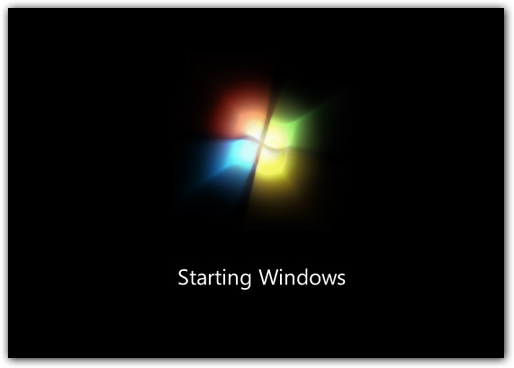
A faster boot up seems to be an elusive goal more than a reality. However, you can decrease the time it takes to start up your computer in Windows by minutes in some cases. With just a few tweaks, you can get your boot up time down to 30 seconds and not 20 minutes. This article will give some quick and easy tips for faster boot up times.

Step 1: Hard Disk Check Up

Over time, your hard drives gets degraded both physically and digitally. It’s important to monitor your drives health. An error or damaged sector can throw software loading into an infinite loop causing long load times. To check your drive health:

1. Click Start
2. Choose Computer
3. Right Click your Hard Drive
4. Choose Properties
5. Click Check Drives Health. After, the check up gives you repair options or a clean bill of health.
6. Restart to get a faster boot up.

Step 2: Eliminate Startup Delay

To get faster boot up speeds, you can cut the boot delay to 0. The delay is in place to allow your startup processes some breathing room during loading. Your default delay is 30 seconds. So, you can eliminate it for faster boot up times.

1. Open your Start menu.
2. Click Run
3. In the command screen, type msconfig
4. In the system configuration utility, click either BOOT tab.
5. In the boot menu, change the default setting for the Time Out from 30 to 5 seconds.

Step 3: Organize your Hard Drive

If you are looking for something in a messy room, naturally, it’s going to take you longer to find something. This is a good metaphor for a hard drive. Over time, filing system gets disorganized. Periodically, you need to reorganize this filing system on your hard drive. Luckily, Windows has a good utility called Defrag that will put your system in order.

1.Open the Start Menu
2. Click on My Computer
3. Right Click your C: drive or your hard drive image.
4. Scroll down to the Click Properties
5. In the Properties Menus, Open the “Tools” menu.
6. Choose Defragment.
7. In the Disk Deframenter menu. Click on Defragment

Step 4: Remove Excess Startup Programs

Most programs you add to your computer will opt to load when you startup your computer. Eventually you will rack up a load of programs that kill faster boot times. You need to reduce the startup programs. You can easily disable unnecessary startup programs. Here is how:

1. Open your Start menu.
2. Click Run
3. Type msconfig, click Enter
4. In the system configuration utility,click either services or startup tab.
5. Uncheck all programs that your are no longer want to run in the background.
6. Click OK

How To Clean your RAM using Notepad

Steps to Clean Your RAM Using Notepad:

Step 1: Open Notepad
Step 2: Type FreeMem=Space(10240000000)
Step 3: Save it as “CLEANER.VBS” in any location you like.
Step 4: You can edit the code and write 512 instead of 1024 if you own a 512mb RAM or change to anything you like.
Step 5: Run it !

After this final step your RAM will be free.

Android distribution in November: Gingebread gets a 50% share

Google updated the Android versions distribution charts and confirmed that the second Gingerbread release (covering versions 2.3.3-2.3.7) extended its lead at the top. Over half of all droids are now running on Gingerbread.

Back in second place, Android 2.2 Froyo continues to lose ground as most of the handsets that used to run it are getting Gingerbread updates. Still, Froyo retains a 35.3% market share, and it will take quite some time before it's completely gone.

Just look at the long outdated Android 1.5 Cupcake, 1.6 Donut and 2.1 Eclair releases. Those account for 0.8%, 1.3% and 9.6% of all droids, respectively, which means that one out of ten Android smartphones is running software that's over two years old (which is like a century in smartphone terms).

The fact that the trio fails to get off the map as quickly as expected is probably partially attributed by the evening out Android growth - the share of devices left with no support and future updates is harder to be disposed of than the software itself.

Finally, the trio of Android Honeycomb distributions continues to make baby steps forward. Android slates now account for 2.4% of all droid devices. We shouldn't expect that share to grow much further though - with Ice Cream Sandwich just around the corner Honeycomb might become the Android version with the shortest lifetime ever.


Version
Market Share, October
Market Share, November
Change
1.5 Cupcake
0.9%
0.8%
0.1
1.6 Donut
1.4%
1.3%
0.1
2.1 Eclair
10.7%
9.6%
1.1
2.2 Froyo
40.7%
35.3%
5.4
2.3 Gingerbread
0.5%
0.5%
0.0
2.3.3 Gingerbread
43.9%
50.1%
6.2
3.0 Honeycomb
0.1%
0.1%
0.0
3.1 Honeycomb
0.9%
1.1%
0.2
3.2 Honeycomb
0.9%
1.2%
0.3

Android 4.0 Ice Cream sandwich is yet to appear on the map, as the sales of the Galaxy Nexus, the first smartphone to run it, have only started a few days ago.

Share

Twitter Delicious Facebook Digg Stumbleupon Favorites More